Have you ever gazed at the night sky and wondered about the mysteries it holds?
Have you ever wished to spot the International Space Station (ISS) as it orbits our planet?
Here's a Cool Tip. Turn your smartphone into a gateway to the cosmos with NASA’s SpotTheStation mobile app.
Here's how to do it.
Download the SpotTheStation mobile app. The app is available for download on both iOS and Android.
Once you’ve installed the app, open it and set your location. This will allow the app to provide accurate sighting opportunities based on your exact location.
The app will show you when the next sighting of the station from your location will be, along with a countdown.
With the power of augmented reality, the app’s built-in compass will show you where the space station is – even if you’re on the other side of the globe.
The app provides options for capturing and sharing pictures and videos of your sightings in real-time.
fig. 1 - NASA SpotTheStation Mobile App
The SpotTheStation app is a powerful tool for space enthusiasts.
It not only allows you to spot the ISS but also enhances the sighting experience by providing additional capabilities and information.
Here's a Cool Tip. Google's AI-powered chatbot, Bard, is now accessible to teenagers.
This opens doors to a world of creative exploration, knowledge expansion, and problem-solving.
Google originally restricted use of the Bard AI service to adults.
But before you dive into this exciting new tool, let's take a moment to understand how Bard works, its benefits and drawbacks, and how to make the most of it.
Imagine having a personal AI companion that can help you brainstorm ideas for your next creative project, research topics for school assignments, or even assist you with homework.
That's what Bard brings to the table.
With its ability to generate text, translate languages, and answer questions in an informative way, Bard can become your go-to source for inspiration and learning.
Here's how to use it.
If you're a teenager, make sure you have your own Google Account, as Bard access is restricted to those who meet the minimum age requirement.
Head over to the Bard website , https://bard.google.com, and sign in using your Google Account.
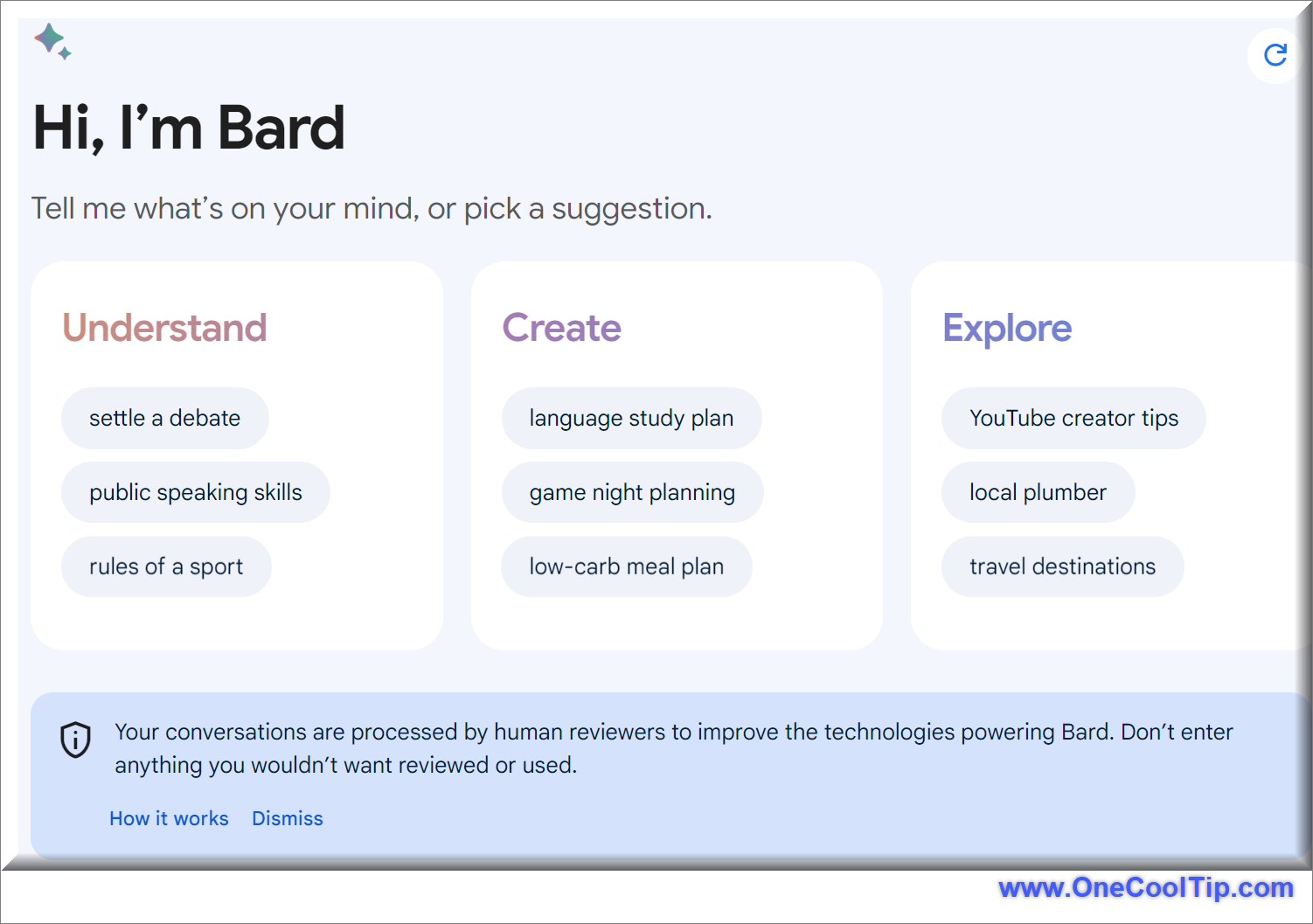
Once logged in, you'll be greeted by Bard's interface.
Start by exploring the various prompts and examples provided to get a feel for how Bard works.
fig. 1 - Google Bard
What can you do as a teenager using Bard?
Creative writing: Ask Bard to help you write a poem, a short story, or a song.
Language translation: Translate a text from one language to another.
Math problem solver: Type or upload a picture of a math equation, and Bard will provide a step-by-step explanation of how to solve it.
Research assistance: Ask Bard to research a topic for a school assignment or gather information on a particular subject.
Like any AI tool, Bard can be misused to generate inappropriate content or spread misinformation. It's crucial to exercise caution and be mindful of ethical considerations while using Bard.
Overdependence on AI tools can hinder the development of critical thinking and independent learning skills.
To ensure a safe and responsible experience for teenagers, Google has implemented several safety measures within Bard.
Bard has been trained to identify and avoid topics inappropriate for younger users, and it incorporates safety guardrails to prevent the generation of responses involving illegal or age-gated substances.
In recognition that some individuals, including teenagers, may not be fully aware of potential hallucinations in large language models (LLMs), Bard automatically employs a "double-check response" feature when a teenager asks a fact-based question for the first time.
This feature assesses whether there is corroborating evidence on the web to support Bard's response.
This feature will soon be automatically activated for all new Bard users when they ask their first factual question.
For teenagers specifically, Google actively encourages the use of the double-check feature to foster the development of information literacy and critical thinking skills.
Bard has released the following video for getting started with Generative AI.
Have you ever found yourself toggling between your Microsoft Word document and your web browser, trying to juggle your writing and research simultaneously?
What if there was a way to streamline this process, making your research accessible without ever leaving your Word document?
Here's a Cool Tip. Use the Microsoft Word Researcher feature.
The Researcher feature, available to Microsoft 365 subscribers, is a built-in tool in Microsoft Word that allows you to conduct web-based research directly within your Word document.
Powered by Bing, it provides you with relevant topics and top sources including books, journals, websites, and images.
Here's how to use it.
Open your Word document.
Navigate to the “References” tab.
Click “Researcher” from the “Research” section of the ribbon.
In the search box that appears on the right, type a keyword for the topic you are researching and press Enter.
The Results pane will show a list of sources you can use in your document.
Choose a topic in the Results pane to explore in detail.
Click the plus sign on any result to begin an outline, add the result as a topic heading, and save a link to the result in a comment.
Add topic items to your document by clicking the plus sign next to the source title or the quote icon next to the text you want to cite.
fig. 1 - Microsoft Word Researcher
The Researcher feature can significantly reduce the time you spend researching your document, allowing you to focus more on writing.
It also provides structured, safe, and credible information, making your research process more efficient.
In today's interconnected world, where social media platforms seamlessly integrate, it's easy to lose control over how your personal content is shared.
Threads, the new social networking app from Meta, is no exception.
By default, your Threads posts may be shared with your other Meta accounts, including Facebook and Instagram.
Here's a Cool Tip. Change Your Settings to Prevent This Sharing to Other Apps.
If you're not comfortable with this level of visibility, you can disable cross-app sharing on Meta Threads and regain control over your privacy.
Here's how to do it.
Launch the Meta Threads app
Ensure you're logged into the account you want to manage sharing settings for.
Tap on your profile picture to access your profile settings.
Scroll down to the "Privacy" section
Tap on the "Suggesting posts on other apps" option.
Toggle off the switches next to "Facebook" and "Instagram" to disable cross-app sharing for both platforms.
fig. 1 - Change Sharing Settings on Meta Threads App
With this simple change, you can prevent your posts from being shared to the other Meta apps.
Whether you need help with writing, coding, or creating art, just ask!
Press Enter.
Copilot is a powerful tool that can save you time and inspire creativity.
Copilot can generate content, assist with writing, and even create graphic art.
fig. 1 - The Newly Renamed Copilot
Here are two examples:
Perhaps you’re a songwriter experiencing writer’s block. You could ask Copilot, “Can you help me write a song about friendship?” Copilot could then generate lyrics for you, potentially sparking your creativity and helping you overcome your writer’s block.
Or if you’re a coder and need help with a Python script, you can ask Copilot. Or if you’re an artist looking for inspiration, Copilot can generate a unique piece of graphic art based on your prompt.
However, it’s important to remember that it’s an AI, and while it’s intelligent, it doesn’t replace human creativity and intuition.
Copilot is designed to be user-friendly and doesn’t require any complex configuration.
And with this new name and new website, you can access Copilot outside of the Bing search engine site.
Have you ever found yourself in the middle of an important task when your screen suddenly goes black?
Or perhaps you’ve experienced graphical glitches that disrupt your workflow?
What if there was a quick, easy solution right at your fingertips?
Here's a Cool Tip. Use the Windows keyboard shortcut Ctrl + Win + Shift + B.
The Ctrl + Win + Shift + B shortcut is designed to reset the graphics subsystem on your Windows machine.
This can be particularly useful when you’re experiencing graphical issues or black screen problems.
Here's how to do it.
Press the Ctrl, Win, and Shift keys on your keyboard simultaneously, followed by the ‘B’ key.
Your screen will go black for a split second and you’ll hear a beep, indicating that the graphics subsystem has been reset.
fig. 1 - Use Ctrl + Win + Shift + B to Reset Graphics
This shortcut provides a quick and easy way to troubleshoot and resolve common graphical issues without needing to restart your computer or delve into complex settings.
While this shortcut can be a handy tool for temporary fixes, it’s not a permanent solution.
If you’re working on a graphic-intensive project and start to notice visual glitches, this shortcut can help you quickly resolve the issue and continue with your work.
Note: Cocreator is now Copilot in Microsoft Paint.
Have you ever wondered how to transform your digital artistry with the power of AI?
Or perhaps you’re curious about the latest features in Microsoft Paint for Windows 11?
Here's a Cool Tip. Use the New Cocreator AI feature in Paint for Windows 11.
Cocreator is a new feature in Microsoft Paint for Windows 11 that allows you to generate images from text descriptions using AI.
It’s powered by a powerful AI model called DALL-E.
It’s also a great tool for generating initial ideas or drafts that can be further refined manually.
Here’s how to use it:
Open Microsoft Paint.
Select the Cocreator icon on the toolbar to see the Cocreator side panel.
fig. 1 - Microsoft Paint Cocreator Sidebar
In the text box, enter a description of the image you want to create. For example, you can type “a blue cat with a red hat” or “a landscape with mountains and a lake”. Be descriptive as possible to generate results matching your expectations.
In my example, I used "view of the Grand Canyon from the south rim at sunset"
After you enter the text, choose a style in which you want to create your image and then select the Create button.
In my example, I selected "Watercolor".
Cocreator will generate three different variants of the image you requested, you can click on any of the variants to apply that image to Paint canvas and start creating.
fig. 2 - Microsoft Paint Cocreator example
Select the image you want to use.
Edit and save your image.
fig. 3 - Paint - Grand Canyon South Rim at Sunset
Please note that to use Cocreator, you need to sign in with your Microsoft account.
Cocreator is rolling out to users and it may not be available to you now.
Cocreator uses a cloud-based service that requires authentication and authorization.
Signing in with your Microsoft account also allows you to access your credits, which are needed to generate images with DALL-E.
Each time you generate an image, you spend one credit.
You will receive 50 credits to create images when you join Cocreator.
Have you ever wondered how to make your Excel spreadsheets more dynamic and informative?
Here's a Cool Tip. Use Microsoft Excel's Geography Data Type feature.
Microsoft Excel’s geography data type feature is a powerful tool that allows you to access and integrate rich geographical data into your spreadsheets.
But how does it work, and what can you do with it?
Here's how to use it.
Start by typing geographic data into your cells.
This could be country names, city names, or even postal codes.
Highlight the cells containing your geographic data.
Navigate to the Data tab and select 'Geography’.
Excel will automatically convert your data to the geography data type.
fig. 1 - Select Country Cells and Geography
Click on the Insert Data button that appears when you select a cell with the geography data type.
From here, you can choose what information you want to display in your spreadsheet.
fig. 2 - Select Fields
The geography data type feature in Excel offers allows you to access a wealth of information about geographic locations.
After converting them to the geography data type, you can extract information such as capital and population, and more.
fig. 3 - Excel Geography Fields
This can be incredibly useful for a variety of applications, from creating informative tables to performing data analysis.
The information in Excel’s geography data type feature is linked to an online data source, which means it can be refreshed and updated.
To get current data for your data types, you can right-click a cell with the linked data type and select Data Type > Refresh or Refresh All
This will refresh the cell you selected, plus any other cells that have that same data type.
This ensures that your data is always up-to-date with the latest information from the online data source.
Excel also has Stocks and Currency data types which we'll cover in a future Cool Tip.
Enjoy!
Watch this Cool Tip video to learn more about using Microsoft Excel's Geography Data Type feature: