Thursday, August 3, 2023

Bing Chat Goes Dark

Bing Chat
Are you tired of staring at bright white chat screens all day? 

Do you want to give your eyes a break and switch things up? 

Here's a Cool Tip: Bing Chat Dark Mode.

Bing Chat, Microsoft's AI Chatbot, has just released a new feature that allows users to switch to a sleek and stylish Dark Mode.


Bing Chat Dark www.OneCoolTip.com
fig. 1 - Bing Chat Dark www.OneCoolTip.com


Here's how to change the setting:

  • Go to Bing.com
  • Select Chat.
  • Navigate to the settings menu (the three lines in the top right corner).
  • Scroll down until you see the “Appearance” section.
  • Click on the “Dark” toggle to turn it on.
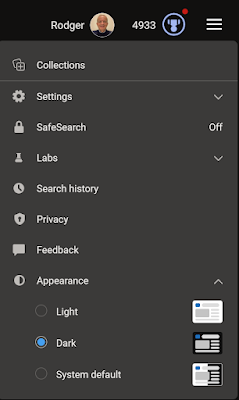
Bing Chat Dark Mode
fig. 2 - Bing Chat Appearance Setting - Dark

It’s that easy! 

Now, all of your AI chats will be displayed in Dark Mode, giving them a sleek and modern look.

Google recently made a similar enhancement to it's AI, Bard.

Please Like and Share OneCoolTip.com!

READ MORE


OneCoolTip.com
Cool Tech Tips for a Cooler Life!

#BingChat #DarkMode #TechNews #EyeCare #Microsoft #Bing #AI #techtips #OneCoolTip @Microsoft 

Wednesday, August 2, 2023

How to Do Google Math

Google
Need to do a quick calculation?

Here's a Cool Tip:  Use Google

That's right.

The Google search site can also perform calculations.

Here's how to do it:

  • Go to Google
  • Enter a calculation, for example, 5 times 275
  • Google will provide the answer
  • And as a bonus will display an interactive calculator so you can do more math!

Google Calculator
fig. 1 - Google Calculator

You can also use operators such as * (multiply), + (plus), - (minus) and / (divide) in your entry.

That's it.

Enjoy!

Please Like and Share OneCoolTip.com!

READ MORE


OneCoolTip.com
Cool Tech Tips for a Cooler Life!


#Google #calculator #searchengine #techtips #OneCoolTip @Google @OneCoolTip


Tuesday, August 1, 2023

How to Play Music or Videos Across Chrome Tabs

Google Chrome
Do you ever want to listen to music or other audio while you're browsing the web? 

If so, you're in luck! Google Chrome has a built-in feature that allows you to play music or sound across multiple tabs. 

This means that you can be listening to a song on YouTube while you're also reading an article on a news website.

Here's how to do it.

Play music or sound across Chrome tabs

  • On your computer, open Chrome.
  • In a tab, play music, a video, or anything that plays sounds. 
  • Click the Media control at the top right to control the sound 
  • You can pause, go to the next song or video, or click to go back to the tab where the song or video plays. 
  • To watch a video across tabs, select Picture-in Picture.
Google Chrome Media Control
fig. 1 - Google Chrome Media Control

Google Chrome's "Play music or sound across Chrome tabs" feature is a great way to listen to music or other audio while you're browsing the web. 

It's easy to use and it gives you a lot of control over the sound of different tabs.

Enjoy!

Please Like and Share OneCoolTip.com!

READ MORE


OneCoolTip.com
Cool Tech Tips for a Cooler Life!


#Google #Chrome #googlechrome #playmusic #sound #audio #multitasking #productivity #webbrowser #tech #technology #TechTips #OneCoolTip @Google @GoogleChrome 

Monday, July 31, 2023

How to Format Cells with Color with This Excel-lent Cool Tip!

Microsoft Excel
Are you tired of constantly clicking through menus to format your cells in Microsoft Excel? 

Do you want to save time and increase your productivity? 

Look no further! 

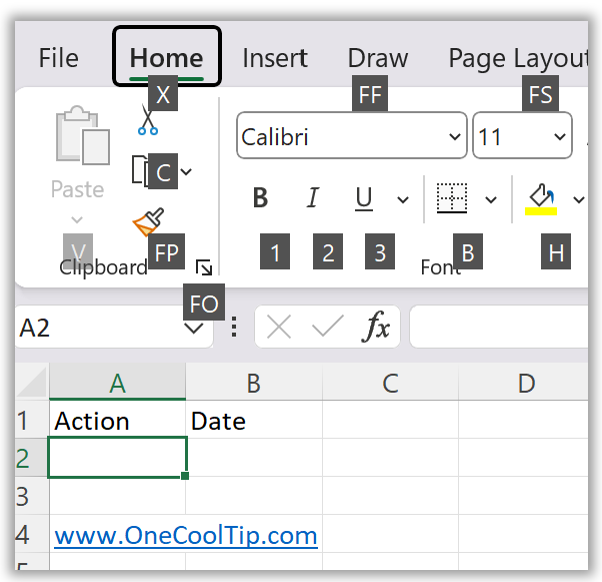
Here's a Cool Tip: Use keyboard shortcut ALT+H+H. 

This allows you to quickly format cells with background colors in Excel.

When you press these keys, the Fill Color menu will appear, allowing you to quickly change the background color of a cell.

To use this shortcut, 
  • Select the cell or range of cells that you want to format. 
  • Press the ALT key
Microsoft Excel ALT Command
fig. 1 - Microsoft Excel ALT Command

  • Then press the H key twice
  • The Fill Color menu will appear.
Microsoft Excel Color Fill Menu
fig. 2 - Microsoft Excel Color Fill Menu
  • Use the arrow keys or your mouse to select the desired color.
That's it!

Using keyboard shortcuts can greatly improve your efficiency when working with Excel. 

Enjoy!

Check out how to use this Cool Tip on YouTube:

How to Do It - YouTube


Please Like and Share OneCoolTip.com!


READ MORE

OneCoolTip.com
Cool Tech Tips for a Cooler Life!

#Microsoft #MicrosoftExcel #ExcelTips #KeyboardShortcuts #Productivity @Microsoft #techtips #OneCoolTip 

Sunday, July 30, 2023

How to Send Gmail Emails at the Perfect Time

Gmail
Do you use Gmail?

Do you ever find yourself wanting to send an email, but you don't want to send it right away? 

Maybe you want to send it at a specific time, or maybe you want to send it when the recipient is most likely to be online.

If so, here's a Cool Tip:  Use Gmail's Schedule to Send Feature.

This feature allows you to schedule an email to be sent at a later date and time. 

This is a great way to ensure that your emails are seen when you want them to be seen.

How to do it:

  • Compose a new email.
  • Click the down arrow next to the Send button.
Gmail Schedule to Send
fig. 1 - Gmail Schedule to Send
  • Click Schedule send.
  • Select a date and time for the email to be sent.
  • You can also pick a specific date and time.
Gmail Schedule to Send Select Time
fig. 2 - Gmail Schedule to Send Select Time

That's it! 

Your email will now be sent at the specified time.

Enjoy!

Please Like and Share OneCoolTip.com!

READ MORE

OneCoolTip.com
Cool Tech Tips for a Cooler Life!

#gmail #scheduletosend #email #productivity #Google #techtips #OneCoolTip

Saturday, July 29, 2023

Twitter is Dead. Long Live X

X Twitter
Twitter, the popular social media platform, is dead.  

In a major rebranding effort, it is now the "everything" X app.

No more *tweets*.

Now they are *Posts*.

Its iconic bird logo has been replaced with a new X logo.

But what does this mean for users? 

What changes can we expect to see on the X app?

X Twitter App OneCoolTip
fig.1 - X Twitter App - @OneCoolTip

Since buying Twitter for 44 Billion dollars a few months ago, Elon Musk has introduced a slew of new features such as the opening the verified user checkmark to paid subscribers, long form text, video and easing censorship on the platform.

Musk has not yet revealed all of the details about what the new X will offer, but it is rumored that the company is working on a number of new features, including:

  • A payments feature that will allow users to send and receive money directly through the app.
  • A shopping feature that will allow users to buy and sell products and services on X.
  • A productivity feature that will allow users to collaborate on projects and share files.

If Musk is able to deliver on his promises, X could become a major player in the social media and mobile payments markets.

You can find OneCoolTip on X at @OneCoolTip

You can find X on the web at www.X.com.

Don't have the X app on your phone?  

You can find the X app here:


That's it.

Enjoy!

Please Like and Share OneCoolTip.com!

READ MORE


OneCoolTip.com
http://www.onecooltip.com
Cool Tech Tips for a Cooler Life!


#X #xapp #Twitter #elonmusk #rebrand #socialmedia #Android #iPhone #Google #Apple #iOS #TechTips #OneCoolTip @Apple @Google @OneCoolTip 

Friday, July 28, 2023

Explore the Physics of Gravity

Gravity Points
Have you ever wondered what it would be like to live in a world where gravity worked differently? 

Here's a Friday Funday Cool Tip: Visit the Gravity Points website. 

Gravity Points is an interactive website that allows you to explore the physics of gravity in a variety of ways.

Check it out:  Gravity Points

Gravity Points Screen
fig. 1 - Gravity Points


To play, click to create a new gravity point.

Watch gravity in action!

That's it!

Enjoy!

Please Like and Share OneCoolTip.com!

READ MORE


OneCoolTip.com
http://www.onecooltip.com
Cool Tech Tips for a Cooler Life!

#gravity #physics #science #technology #website #codepen #FridayFunday #techtips #OneCoolTip

Thursday, July 27, 2023

How to Delete the Last 15 Minutes of Your Google Search History on Mobile

Google App
Ever done a Google search that you immediately regretted? 

Maybe you were looking up something embarrassing, or maybe you just didn't want your search history to be saved. 

If so, you're in luck. 

Google recently added a new feature that allows you to delete the last 15 minutes of your search history from the mobile Google app.

Here's how to do it.

  • Open the Google app on your phone.
  • Tap on your profile picture in the top right corner.
  • Tap "Delete last 15 minutes."
  • A confirmation message will appear. Tap "Delete" to confirm.
Google App Delete 15 Minutes
fig. 1 - Google App - Delete Last 15 Minutes

Deleting the last 15 minutes of your search history can help you protect your privacy and security. 

It can also help you avoid embarrassing situations, such as if someone else were to see your search history.

Deleting the last 15 minutes of your search history is a quick and easy way to protect your privacy and security. 

If you're concerned about someone else seeing your search history, or if you just want to keep your search history private, this is a great option.

Don't have the Google app for your Android or iPhone?  Get them here:  AndroidiPhone. iPad

Enjoy!

Please Like and Share OneCoolTip.com!

READ MORE


OneCoolTip.com
http://www.onecooltip.com
Cool Tech Tips for a Cooler Life!


#google #search #history #privacy #security #GoogleApp #iPhone #android #techtips #OneCoolTip @Google @Apple 

Wednesday, July 26, 2023

Android Users Rejoice - ChatGPT Now Available

ChatGPT
Are you a sad Android user because the ChatGPT app hasn't been available for you?

Are you jealous because there's been an iPhone version out already?

Sad, isn't it?

Well, wipe away those Android tears because here's a Cool Tip.

Go to the Google Play store and download the official ChatGPT app.

ChatGPT is a state-of-the-art AI chatbot that uses advanced natural language processing techniques to generate human-like responses.

With ChatGPT, you can have engaging and interesting conversations on a wide range of topics.

We told you when the iPhone ChatGPT first became available.

But now, Android users have their own app.

ChatGPT Android
fig. 1 - ChatGPT for Android


Here’s how to get started with ChatGPT:

  • Go to ChatGPT on Google Play.
  • Select Install.
  • Once the app is installed, open it and start chatting!

So what are you waiting for? Download ChatGPT today and experience the future of AI chatbots!

Please LIKE and SHARE OneCoolTip.com!

READ MORE


OneCoolTip.com
http://www.onecooltip.com
Cool Tech Tips for a Cooler Life!


#ChatGPT #AI #AIAssistant #OpenAI #chatbot #GooglePlay #technology #PersonalAssistant #PocketAI #TechTips #OneCoolTip #Android 

Tuesday, July 25, 2023

Netflix Introduces New My Netflix Feature for iPhone

Netflix
Do you use Netflix on your iPhone?

If so, there's a new feature in the latest update.

Netflix is rolling out for iOS a new feature that replaces the Downloads tab in the bottom right-hand corner.

This new tab includes downloads and in-progress videos you've watched and liked as well as notifications, and trailers you've watched. 

As you use the app, such as liking videos and leaving comments, the tab will update with more recent information.

My Netflix
fig.1 - The New My Netflix Tab

Android users will have to wait until August to see the new feature.

Enjoy!

Please Like and Share OneCoolTip.com!

READ MORE


OneCoolTip.com
http://www.onecooltip.com
Cool Tech Tips for a Cooler Life!

#Netflix #MyNetflix #videos #app #iOS #iPhone #TechTips #OneCoolTip