Sunday, January 29, 2023

How to Turn Off Slow WiFi Using Siri or Google Assistant

Did you just automatically connect to a slow WiFi?

This can happen when you're away from your home WiFi and your phone has automatically joined a WiFi that is slow.

You can manually disable WiFi to jump back to your Carrier's data connection by clicking the menus.

But you can also just tell Siri or Google Assistant to turn off your WiFi connection.

 “Hey Siri, turn off my WiFi” 

When you know you have a solid WiFi connection again, just tell Siri or Google Assistant to turn it back on.

"Hey Siri, turn on my Wifi"

That's it!  Enjoy.

If you like OneCoolTip, please Like and Share!


OneCoolTip.com
http://www.onecooltip.com
Cool Tech Tips for a Cooler Life!


#WiFi #Siri #GoogleAssistant

Saturday, January 28, 2023

How to Unlock Screen Rotation on an iPhone

Portrait Orientation Lock
Sometimes when using an iPhone you'll need to rotate your phone to see a wider view of the content.

This is very useful when you are laying on your side and want to read on your phone or watch a video.

But what happens if the screen doesn't rotate?

It could be because the Portrait Orientation is locked.

To fix this, you'll need to turn it off.

Here's how to do it.

  • Swipe down from the top-right corner of your screen to open Control Center.
  • Tap the Portrait Orientation Lock button  to make sure that it's off.
iPhone Control Panel
  • Rotate your iPhone sideways.

If the screen doesn't rotate, try using a different application such as Google Chrome or the Safari browser. 

Conversely, there may be times when you DON'T want the screen to rotate.  Make sure the Portrait Orientation is LOCKED.

Enjoy!

If you like OneCoolTip, please Like and Share!


READ MORE

#portrait #orientation #iPhone

Friday, January 27, 2023

When You Need to Cleanse Your Eyes from the World Wide Web

Cute Kitten

Have you just seen too much crazy and weird stuff this week on the World Wide Web?

And you just want to wash your eyes out with bleach? (don't do that!)

Then it's time to hurry on over to Eyebleach.me for Friday Fun Day!

Eyebleach.me offers a rotating selection of the cutest animals that will wash away even the most nastiest of mental images.

Select from Only Kittens, Only Cats, Only Dogs and Only Nature to cleanse your eyes and heal your soul!

Each cute photo will stay on the screen for a few moments before rotating to another photo.


So the next time you need to cleanse your eyes, be sure to check out Eyebleach.me!


Please LIKE and SHARE OneCoolTip.com!

Visit the OneCoolTip YouTube Channelhttps://www.youtube.com/@onecooltip


READ MORE


OneCoolTip.com
Cool Tech Tips for a Cooler Life!

#eyebleach #FridayFunday #TechTips #OneCoolTip @OneCoolTip

Thursday, January 26, 2023

How to Find Out if an Online Service is Down

Is the cloud service down?  

System Down
Is it them or is it you? 

That is the real question in today's modern world.

With so much of our lives dependent on the online services we use every day, we often have to troubleshoot when we can't access services.

How do we survive when Google, Facebook, Instagram, Apple, or Microsoft can't be used?

Is it their service that is down?  Or is it your PC or phone?  Or the WiFi?  Or the broadband service?

Before you start rebooting or restarting an application, there are several places you can check first.

Here's how to do it.

  • First check out the amazing Downdetector service.  Downdetector is powered by user reports and online indicators for thousands of services in dozens of countries.  Make it your first stop.
Downdetector Microsoft 365
  • A Google News Search for <service name> outage can also let you know if there is a widespread service disruption.


If you like OneCoolTip, please Like and Share!


Wednesday, January 25, 2023

And Now, A Change of Case in Microsoft Word

What happens if you accidentally type several paragraphs in all UPPERCASE in Microsoft Word?

HAS THAT EVER HAPPENED TO YOU?

Don't worry, there's a Cool Tip for that.

Here's how to quickly change the case (upper vs. lower) of text in Microsoft Word.

  • Highlight the word, phrase, sentence or paragraph.
  • Press Shift + F3 (you may also have to press the Fn key on some keyboards)
  • Each time you press the keys, you'll cycle through three different text options:
    • all lowercase, 
    • First Letter Capitalized
    • ALL IN UPPERCASE

If you like OneCoolTip, please Like and Share!

READ MORE

OneCoolTip.com
http://www.onecooltip.com
Cool Tech Tips for a Cooler Life!


#Microsoft #Word #text


Tuesday, January 24, 2023

Be the Microsoft Excel Hero with These Spacebar Secrets

Microsoft Excel
Do you know the power of the mighty spacebar when using Microsoft Excel?

The spacebar is a useful tool that can speed up selecting data in your spreadsheets.

Here's how to do it:

  • Press and hold the Ctrl and Spacebar to select an entire column in a worksheet.
Microsoft Excel selected column
  • Press and hold the Shift and Spacebar to select an entire row in a worksheet.
Microsoft Excel selected row
  • Press and hold the Ctrl and Shift and Spacebar to select the entire worksheet.
  • If the worksheet contains data, press and hold Ctrl and Shift and Spacebar to select the current region. 
Microsoft Excel selected table
  • Press Ctrl and Shift and Spacebar a second time to select the current region and its summary rows. 
  • Press Ctrl and Shift and Spacebar a third time to select the entire worksheet.
  • When you select an object, pressing Ctrl and Shift and Spacebar selects all objects on a worksheet.
  • Press Alt and Spacebar to display the Control menu for the Excel window.
Enjoy!

If you like OneCoolTip, please Like and Share!

Monday, January 23, 2023

Use This Cool Tip to Organize Your Windows, Documents and Applications While Working

Do you have too many confusing windows, documents and applications open on your Windows PC?  

Are you getting your personal documents confused with your work documents when you have them both open?

Here's a cool tip to help you better manage and organize your Windows screens.

--> Open one or more new virtual desktops.

The multiple desktops feature in Windows is a cool way to have multiple desktop screens to keep you organized.  Even if you only have one screen.

Each desktop can be specific to different types of PC activities, for example, work and personal.

Or you can create multiple desktops - one each for each specific project.

You can even quickly switch desktops before a meeting to reduce the clutter and avoid oversharing your desktop information.

Here's how to create multiple virtual desktops in Windows 10 and 11:

Windows 11

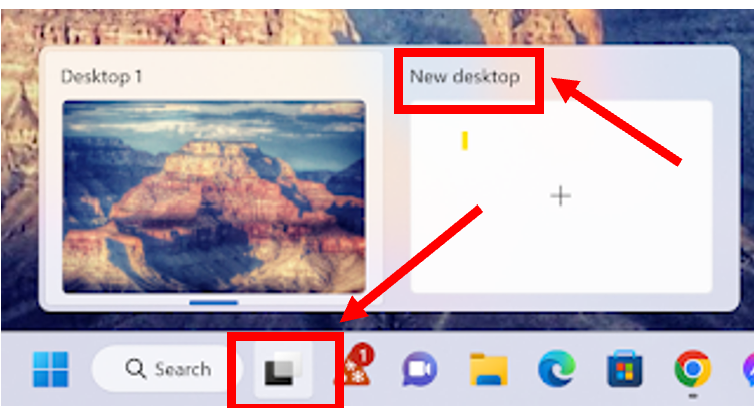
  • Select the Task View icon on the Taskbar
  • Select New desktop.

Microsoft Windows Task View with Highlights

  • Open the apps you want to use on that desktop.
  • You can also use the Windows key + Tab shortcut on your keyboard.
  • To switch to another desktop, select Task view again.

Windows 10

  • On the taskbar, select Task view > New desktop +.
  • Open the apps you want to use on that desktop.
  • To switch to another desktop, select Task view again.
  • You can also use the Windows key + Tab shortcut on your keyboard.
  • To switch to another desktop, select Task view again.

To Move or Share  a window from one desktop to another:

  • Select the Task View button
  • Hover over the virtual desktop with the app you want to move
  • Right-mouse click on the thumbnail of the app you want to move. 
  • Select Move to, and then select the virtual desktop where you want to move the app.

Enjoy!

Sunday, January 22, 2023

ICYMI: In Case You Missed It - Cool Tech Tips for the Week 1/22/23


What a great week of Cool Tips here at OneCoolTip.com

Check out these cool tips this week:
 

How to Open a New Window View in Microsoft Excel 

Are your Microsoft Excel documents so large that you can't see what happens when you change data?

#Microsoft #Excel #NewWindow 

How to Use Alexa on a Windows PC

Do you need Alexa when you are away from your Alexa device?

#Microsoft #Alexa #Windows

Discover the Secret to Finding Where Any Movie or Show is Streaming Online 

With so many streaming sites now available, how can you find where your favorite movie or TV shows are available?  But how can you find which site has the movie or show you are looking to watch?

#streaming

How to Transform Your TV into a Digital Art Gallery 

Are you missing great art from your house?  

Here's a Cool Tip for bringing beautiful digital artwork into your living room.

#art #digitalart

How to Build Digital Sand Art 

Remember making those multi-colored sand in the bottle crafts when you were young?

Relive the fun of your youth with this Friday Funday Cool Tip.

#sand

Use This Secret Windows Shortcut to Add Emojis to Your Documents and Messages 

Do you emoji?

If you use Windows 10 or 11, you'll like this Cool Tip to add emojis to your emails, word documents and other Windows applications.

#emoji #windows 

Annoyed by your partner's ringing and/or vibrating phone alarm?

Are they already up and getting ready but their phone alarm continues to ring?

And the phone is waaaay over on the other side of the bed?

There's a shockingly simple way to turn it off without having to touch the phone.

#phone #alarm 


If you like OneCoolTip, please Like and Share!


OneCoolTip.com

http://www.onecooltip.com
Cool Tech Tips for a Cooler Life!


Shocking Cool Tip: How to Turn Off Someone's Phone Alarm!

Mobile Phone Alarm
Annoyed by your partner's ringing and/or vibrating phone alarm?

Are they already up and getting ready but their phone alarm continues to ring?

And the phone is waaaay over on the other side of the bed?

There's a shockingly simple way to turn it off without having to touch the phone.

--> Call the phone number!

The alarm will stop.

Of course, you'll want to make sure the person is awake. Maybe.

Enjoy your morning peace and quiet!


If you like OneCoolTip, please Like and Share!


READ MORE


#phone #alarm 


Saturday, January 21, 2023

Use This Secret Windows Shortcut to Add Emojis to Your Documents and Messages

Do you emoji?

If you use Windows 10 or 11, you'll like this Cool Tip to add emojis to your emails, word documents and other Windows applications.

Here's how to do it:

  • Windows key + . (period)
This brings up the Windows Emoji Keyboard.

You can select an emoji or even search for one from the extensive list.

Windows Emoji Keyboard

Enjoy!

If you like OneCoolTip, please Like and Share!


READ MORE


#emoji #windows 


Friday, January 20, 2023

How to Build Digital Sand Art

Thisissand
Remember making those multi-colored sand in the bottle crafts when you were young?

Relive the fun of your youth with this Friday Funday Cool Tip:  https://thisissand.com/

ThisIsSand allows you to drop multi-colored sand piles to create amazing works of art.

ThisIsSand can be played in a laptop/desktop web browser (thisissand.com) OR with the Thisissand app on iOS (iPhone) or Android devices.

Get the mobile app from the Apple App Store or the Google Play Store.

Thisissand

Enjoy!

If you like OneCoolTip, please Like and Share!


READ MORE


#ThisIsSand 


Thursday, January 19, 2023

How to Transform Your TV into a Digital Art Gallery

Starry Night
Are you missing great art from your house?  

Don't have a few extra thousands or millions dollars just taking up space?

Here's a Cool Tip for bringing beautiful digital artwork into your living room.

Here's how to do it:

  • On your Smart TV, or TV connected to a FireTV, Google Chromecast or Roku box, open  the YouTube app (you may need to go to the App store to download first)
  • Search for TV Art. Free TV Art, Digital Art or Free Digital Art (really any combination of these words will find the free digital art videos)
  • Select the video you desire
  • You should also subscribe to the channel so you can find it again easily the next time you want to view it.
  • Select Play from the YouTube app.
  • Most of these art videos play for 3-4 hours.
  • Here's a favorite of mine.

Enjoy!

If you like OneCoolTip, please Like and Share!

READ MORE
OneCoolTip.com
http://www.onecooltip.com
Cool Tech Tips for a Cooler Life!

#art #digitalart #YouTube 

Wednesday, January 18, 2023

Discover the Secret to Finding Where Any Movie or Show is Streaming Online

Search

With so many streaming sites now available, how can you find where your favorite movie or TV shows are available?  And how much will it cost to watch?

Online streaming is here to stay.  Popular sites such as Disney+, Hulu, Netflix, Amazon Prime Video, HBO Max, YouTube and Paramount+  all have content to view.  

Maybe you subscribe to one or more of these sites.

But how can you find which site has the movie or show you are looking to watch?

There are a few cool tips for finding your shows:
  • When using a Roku, AppleTV or FireTV device, use the built-in search function to see if your show is listed
  • Use Google to search.  For example, enter watch  <name of show>.  
  • In this case, Captain America: The First Avenger

Google Search Captain America

  • The Google results show that the movie is available on Disney+ if you have a subscription, and several other sites to rent to view.  
  • You can also select the Edit Services link to select only the streaming services you want to search.
  • Finally, use JustWatch.com to search for the show.  In this case, I again searched for Captain America. 

  • JustWatch also shows that the movie is available at Disney+ along with AppleTV.  But it's missing several other viewing options.
  • In this case, Google is a clear winner in finding Captain America to watch.

Enjoy!

If you like OneCoolTip, please Like and Share!

READ MORE


OneCoolTip.com

http://www.onecooltip.com
Cool Tech Tips for a Cooler Life!

#streaming #Google #JustWatch 

Tuesday, January 17, 2023

How to Use Alexa on a Windows PC

Alexa
Do you need Alexa when you are away from your Alexa device?

You can add the Alexa app to your Windows PC!

Alexa is a virtual assistant developed by Amazon that can be used to control smart devices, play music, and provide information. 

While it is primarily used on Amazon devices such as the Echo Dot and Echo Show, it can also be used on a Windows PC. 

Here's how to set up and use Alexa on a Windows PC:

  • Download the Alexa app from the Windows 10 Microsoft Store or launch the pre-installed app on your Alexa Built-in PC.
  • Sign in to your Amazon account or create one if you are new to Alexa.
  • Ask Alexa a question, Alexa, what's the weather?, Alexa, what time is it?
Some examples of things you can ask Alexa on your PC include:
  • Playing music from Amazon Music, Spotify, and other streaming services
  • Checking the weather and news
  • Setting reminders and timers
  • Controlling smart home devices such as lights and appliances
  • Making phone calls and sending messages
With the ability to control smart devices, play music, and provide information, Alexa can make your daily routine more convenient and efficient.

Enjoy!

If you like OneCoolTip, please Like and Share!

READ MORE

OneCoolTip.com

http://www.onecooltip.com
Cool Tech Tips for a Cooler Life!


#Microsoft #Alexa #Windows

Monday, January 16, 2023

How to Open a New Window View in Microsoft Excel

Microsoft Excel
Are your Microsoft Excel documents so large that you can't see what happens when you change data?

Opening a new window view in Microsoft Excel can be a great way to organize and compare different parts of your spreadsheet. 

This can be useful when your Excel document is large and you want to see how changes in one part of the document affect another part.

Here's how to do it:
  • Open Microsoft Excel
  • Open the spreadsheet you want to work with.
  • Click the View tab on the ribbon at the top of the screen.
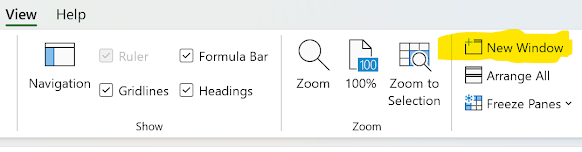
  • In the Window group, click the New Window button. This will open a new window with the same spreadsheet.
Microsoft Excel New Window
  • You can now move and resize the windows as needed. 
  • To switch between the windows, click the View tab again and select the window you want to work with from the Switch Window.
  • Now you can make changes in one window and compare it with the other window side by side.

Tips:
-This works best when using more than one monitor.
-You can also use the Arrange All button in the Window group to automatically arrange all open windows on your screen.
-If you have multiple windows open, you can use the Switch Windows button to quickly switch between them.

By using this feature you can easily work with multiple parts of your spreadsheet at the same time, which can save you time and make your work more efficient.

If you like OneCoolTip, please Like and Share!

READ MORE

OneCoolTip.com
http://www.onecooltip.com
Cool Tech Tips for a Cooler Life!


#Microsoft #Excel #NewWindow