Showing posts with label Bing. Show all posts

Sunday, May 14, 2023

Your Pet Deserves to be Royalty, Let AI Paint Their Portrait!

AI Cat Prince
Do you treat your pets like royalty?

They rule your house?

Would you like a royal painter to paint their pictures?

You can.

Here's a Cool Tip.

Let AI create a picture of your pet.

Since many pets can appear similar, with creative descriptions, you may be able to get a good representation of your favorite pets.

Here's how:

  • Go to Bing.com.
  • Login with your Microsoft account.
    • Create a new one if needed.
  • Select Images from the top men.
  • Select Create Images at the top right corner.
  • To create an image, enter a description such as:
    • "Create a renaissance painting of a gray and black tabby cat dressed as a prince"
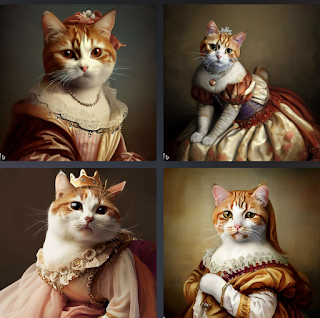
    • "Create a renaissance painting of an orange and white tabby cat dressed as a princess"
  • Bing will show you four versions of your description.
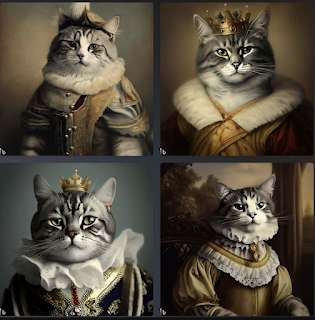
Bing AI Cat Prince Four Princes
fig. 1  Bing AI Cat Princes - Four Princes

Bing AI Cat Princesses Four Princesses
fig. 2 Bing AI Cat Princesses - Four Princesses 
  • Select one of the pictures and then select to share of download to your PC.
Some extra Cool Tips:
  • Bing Image Creator allows users to generate AI images with DALL·E. Given a text prompt, the AI will generate a set of images matching that prompt.
  • Bing provides credits to create the images.  Use your Bing Rewards for more credits.
  • It works best when you're highly descriptive. 
  • Get creative and add details:
    •  adjectives, 
    • locations, 
    • even artistic styles such as digital art, photorealistic or in the style of Van Gogh
  • For best results, try this format:
    • ADJECTIVE, NOUN, VERB, STYLE

That's it!

Enjoy

Please LIKE and SHARE OneCoolTip.com!

READ MORE


OneCoolTip.com
Cool Tech Tips for a Cooler Life!

#AI #painting #cat #dog #royalty #pet #petportrait #petpainting #Bing #ImageCreator #TechTip #OneCoolTip #Microsoft @Microsoft

Sunday, April 23, 2023

How to Access Chat Option in Windows 11 Search Taskbar

Bing
Are you using Windows 11 and wondering how to quickly access Bing Chat, Bing's AI feature? 

It's easy with this Cool Tip.

Access Bing Chat from the search box on the taskbar.

A recent Windows 11 update now allows you quick access to the Bing Chat feature.

Here's how to do it.

  • Click in the Search bar on the Windows 11 taskbar.
  • When you first click in the box, you won't see anything different.
  • Type your search words in the Search Bar and you'll see options.
  • Click on the Chat option that appears on the top of the search results screen

Windows 11 Bing Char Search Taskbar


Congratulations! 

You have successfully accessed the Bing Chat option in Windows 11 search taskbar. 

If this isn't working correctly, ensure you have the last Windows update.

  • Search for Windows Update in the search box to bring up the option to update your Windows 11.

You can also toggle the search highlights option on or off by following these steps:

  • Press the Windows + I hotkey to open the Settings app.
  • Choose Privacy & security from the left sidebar.
  • Choose Search permissions.
  • Enable the toggle under Show search highlights.

That's it!


Please LIKE and SHARE OneCoolTip.com!


READ MORE


OneCoolTip.com
Cool Tech Tips for a Cooler Life!

#Windows11 #SearchTaskbar #ChatOption #QuickAccess #TechTips #OneCoolTip #Microsoft @microsoft 

Monday, April 17, 2023

How AI is Changing the Way We Work: An Example for Bing Chat AI, Excel and Data Analysis

As AI, in all of its forms, becomes more prevalent, we will all find practical examples to use these powerful tools in our professional and personal lives.

But is it all just hyperbole?

A modern day "fluff" PR stunt to promote a brand and make someone rich before it all crashes and burns?

Maybe, it's too soon to tell.

But let's look at an example with AI that's available today with Microsoft Bing Chat.

As a reminder, Bing Chat uses ChatGPT to power its AI feature.

In this case, a beginning Excel user is tasked with performing data analysis on sales data for the previous year, by quarter and by region.

Let's see what Bing Chat can do.

I asked Bing Chat to review the sales data table and provide the Microsoft Excel formulas for meaningful results.

Bing Chat Request for Sales Analysis

fig. 1  Bing Chat Request for Sales Analysis


Bing Chat returned the following:

Bing Chat Excel Sales Data Analysis
fig. 2   Bing Sales Analysis Results


Not too bad.

The formulas worked to add additional content for Totals, Averages, Minimums, Maximums and Quarter over Quarter Percentages.

Following the formula examples provided by Bing Chat, I added the formulas and the Excel table now shows these results.  

Bing Chat Excel Results
fig. 3  Excel Sales Data updated to Bing Chat AI examples.

Can more be done?

AI is designed to allow users to engage in conversations.  

I asked Bing Chat for more examples.

Bing Chat Examples - More
fig. 4   Bing 

The results provided more analysis that could be added to the data table, including Percentage of Total Sales, Year-to-date Sales, Quarter-over-quarter change, and Year-over-year change.

In this simple example, a user could get a good start on their work assignment.

A more experienced Excel user would knows these capabilities and how to use them in Excel.

But this is a good example of what is possible.

And playing further with this example would bring more depth to the analysis.

AI is improving and it will play a greater role in our professional and personal lives.


Please LIKE and SHARE OneCoolTip.com!


READ MORE

OneCoolTip.com
Cool Tech Tips for a Cooler Life!


#AI #Bing #BingChat #ChatGPT #Microsoft #Excel #Data #Analysis #Sales


Thursday, February 9, 2023

Begun the AI Wars Have! Learn How to Sign Up for the New Bing AI

Bing
How do I see the new Bing that has the new AI?

You can, sorta.  But not really. 

It's not out for full public release yet but you can sign up to join the waitlist.

Microsoft announced that they are adding ChatGPT to their Bing search engine site.  

And ultimately to other Microsoft products.

We've told you about the incredible capabilities of ChatGPT here on OneCoolTip:

Beware!  AI May Take Your Job. Check this Cool Tip on How It Can Happen.

In their announcement, Microsoft showed off some of the capabilities.  

For example, you can ask Bing to suggest a 3-course menu with a chocolate dessert for your vegetarian dinner party.  Bing will display its answer in a window to the right of the search results.

Bing ChatGPT Example

Learn how to sign up for the new Bing AI testing feature.

  • Go to www.bing.com
  • Login with your Microsoft account credentials.
  • Select the Learn More button in the center of the page.


Bing Learn More

  • Select Join the Waitlist

New Bing Join Waitlist


That's it.  When the new Bing is released, you'll be the first to know.

Please Like and Share OneCoolTip !

Sunday, May 15, 2011

Bing App for iPad Gets It Right

While Google may still rule the world, Microsoft is still a mighty contender.

And the Microsoft search engine has taken on both with its recent Bing app for the iPad.

The free app is rich in details and graphics.  It "gets" the beauty of the iPad.

Bing graphically shows the areas that you most want to access from a portable tablet:  News, Weather, Movies, Movies, Trends, and Finance.

The new app is available in the Apple iTunes Store HERE.

Sadly, the Google app for the iPad looks like it's from 1995.  Dull and boring. Uh oh.

And while Apple's native Safari browser is a good tool, you'll find yourself using the new Bing app for iPad for many more uses.

Check out Bings video on its new app:
<br/><a href="http://video.msn.com/?mkt=en-us&vid=bf79720b-2fce-4f05-b880-21793cd62bd9&src=SLPl:embed::uuids&fg=sharenoembed" target="_new"title="Touch and Decide: Introducing Bing for iPad">Video: Touch and Decide: Introducing Bing for iPad</a>


One Cool Tip.com
Daily Tips for a Cooler Life!